Members Guide
This guide is for anyone who uses the makerspace. You do not need an account or login to use any of the features described here. Everything works by simply visiting a web page or using a Slack command.
Checking Equipment Status
There are several ways to check whether a piece of equipment is working before you head to the space or start a project.
Status Dashboard (Web)
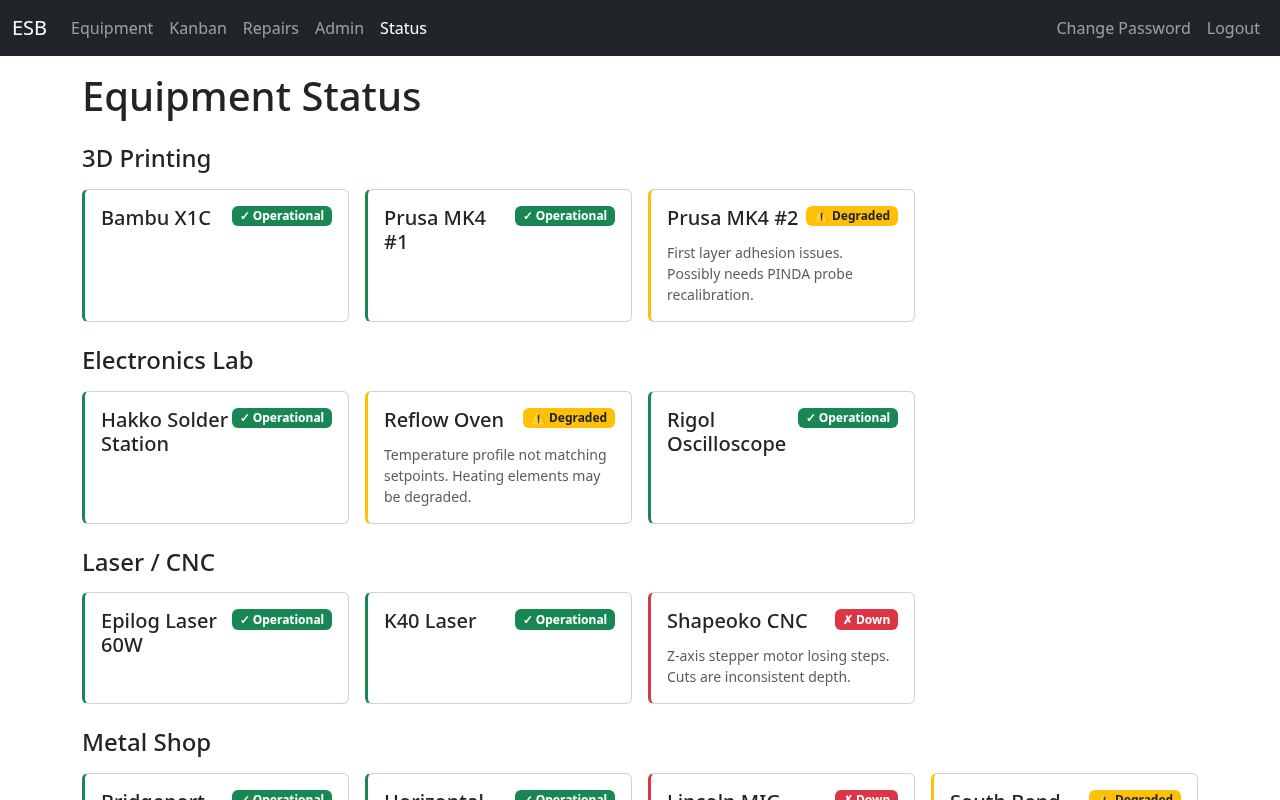
The Status Dashboard shows every piece of tracked equipment organized by area (e.g., Woodshop, Metal Shop, Electronics Lab). Each piece of equipment is displayed as a card with a color-coded status indicator:
- Green / Operational — No known issues
- Yellow / Degraded — Equipment works but has a known problem, or the severity hasn't been determined yet
- Red / Down — Equipment is not usable
Navigate to the Equipment Status Board URL in your browser to see the dashboard. No login is required.
Static Status Page (Remote Access)
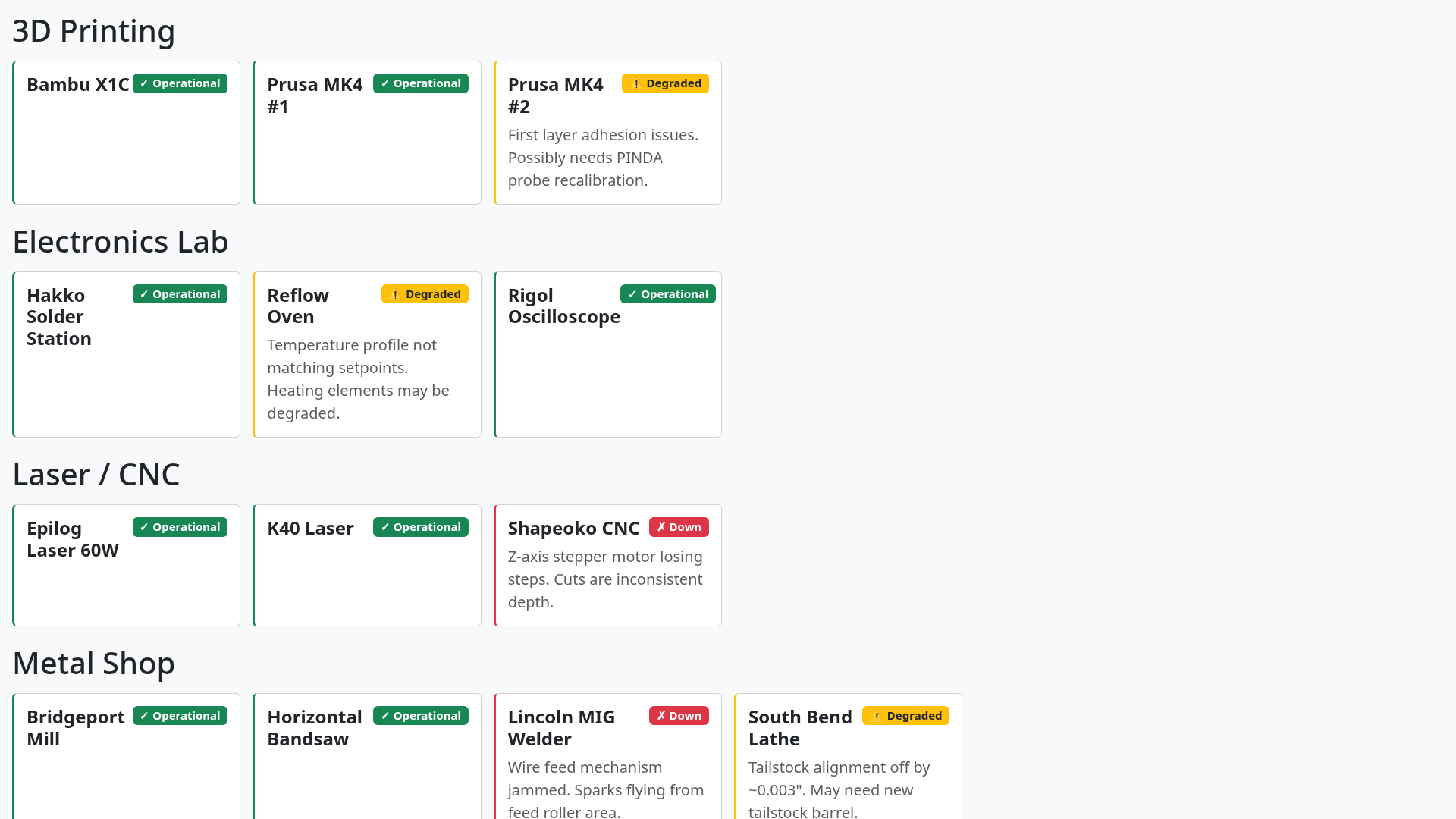
A lightweight version of the status dashboard is available at a separate public URL that can be accessed from anywhere, even outside the makerspace network. This page is automatically updated whenever equipment status changes.
Ask a staff member for the static status page URL if you don't have it.
Kiosk Display (In the Space)
Large-screen displays mounted in the makerspace show a full-width status grid that's readable from across the room. These displays auto-refresh every 60 seconds, so the status is always current. You don't need to interact with them — just look up.
Using QR Code Equipment Pages
Every tracked piece of equipment has a QR code sticker on it. This is the fastest way to check on a specific tool or machine.
How to Scan
Point your phone's camera at the QR code sticker on the equipment. Your phone will show a link — tap it to open the equipment page in your browser. No app is needed.
What You'll See
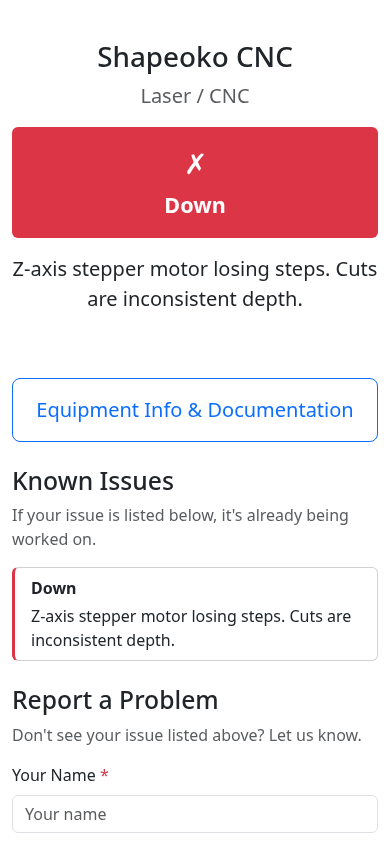
The equipment page shows:
- Equipment name and area — Confirms which piece of equipment you're looking at
- Status indicator — A large, clear green/yellow/red indicator showing the current status
- Issue description — If the equipment isn't green, a description of the current problem
Checking Known Issues
If the equipment has any open repair records, they appear in a "Known Issues" section. Before reporting a new problem, check this list to see if your issue is already being tracked. Each known issue shows:
- A brief description of the problem
- The current repair status (e.g., "In Progress," "Parts Ordered")
If your issue is already listed, there's no need to report it again.
Accessing Equipment Documentation
Below the status information, you'll find an "Equipment Info" section with links to documentation such as owner's manuals, quick start guides, training materials, and other helpful resources uploaded by staff or technicians.
Reporting a Problem
If you find a piece of equipment that's broken or not working properly, and the issue isn't already listed under "Known Issues," please report it. Problem reports go directly to the repair queue so technicians can address them.
Reporting via QR Code Page
- Scan the QR code on the equipment to open its page
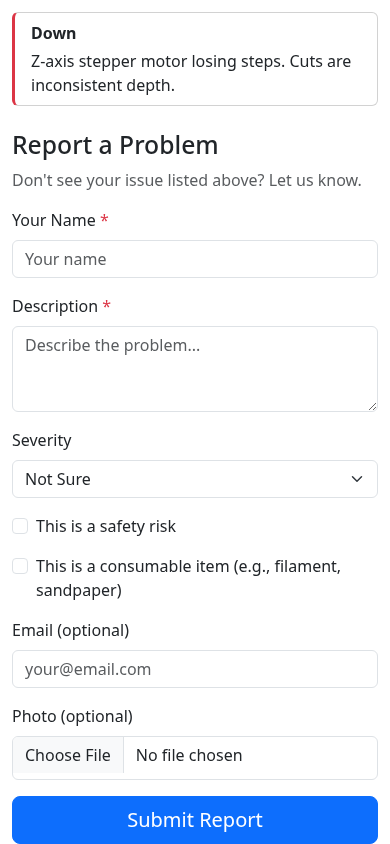
- Scroll down to the problem report form
- Fill in:
- Your name (required) — So technicians can follow up if needed
- Description (required) — Describe what's wrong or what happened
- Severity (optional) — Select "Down" if the equipment can't be used at all, "Degraded" if it works but has problems, or leave it as "Not Sure"
- Safety risk (optional) — Check this box if the problem could be a safety hazard
- Photo (optional) — Attach a photo showing the issue
- Tap the submit button
You'll see a confirmation page with a link to the Slack channel where repairs for that area are discussed.
Reporting via Slack
You can also report problems from Slack using the /esb-report command:
- Type
/esb-reportin any Slack channel - A form will pop up — fill in the same fields (equipment, description, severity, etc.)
- Submit the form
The repair record is created immediately and technicians are notified.
What Happens After You Report
- A repair record is created in the system
- The equipment status updates on the dashboard, QR page, and kiosk displays
- Technicians are notified via Slack (if notifications are enabled)
- You can check back on the QR code page anytime to see the current repair status
Checking Status via Slack
If you'd rather check equipment status from Slack:
/esb-status— Shows a summary of all areas. For each area you also get a bulleted list of any equipment that is currently degraded or down, with a brief description and ETA when known. The summary ends with a tip pointing at/esb-status <area name>for one-area detail./esb-status [area name]— Shows the full status of one area: every piece of equipment, plus the issue / ETA / assignee for any non-green item (e.g.,/esb-status Woodshop). Area-name match takes precedence over equipment-name search, so an area namedWoodshopalways wins over an equipment name that containsWoodshop./esb-status [equipment name]— When the argument doesn't match an area name exactly, it falls back to equipment search. Shows the status of a specific piece of equipment (e.g.,/esb-status SawStop).
Understanding Status Colors
| Color | Status | What It Means |
|---|---|---|
| Green | Operational | No known issues. The equipment is working normally. |
| Yellow | Degraded | The equipment works but has a known issue, or the severity hasn't been determined yet. You can still use it, but be aware of the problem. |
| Red | Down | The equipment is not usable. Do not attempt to use it. |