Equipment Status Board
The Equipment Status Board (ESB) is a web application for tracking equipment status and coordinating repairs at Decatur Makers, a 501(c)(3) non-profit makerspace with approximately 600 members and 24/7 access.
What is the Equipment Status Board?
Makerspaces have dozens of shared tools and machines that members rely on daily. When something breaks, word often spreads slowly through scattered Slack messages, handwritten signs, or word of mouth. Members waste trips to the space only to find a tool they need is out of service. Technicians duplicate diagnostic work because previous findings aren't documented. Staff lose track of which repairs are stuck waiting for parts.
The Equipment Status Board solves this by providing a single source of truth for equipment status. Members can check whether a tool is working before they visit. Technicians can see what needs fixing, read previous diagnostic notes, and update progress from their phone at the bench. Staff can monitor all active repairs on a Kanban board and spot items that are stuck.
Features
Web Dashboard
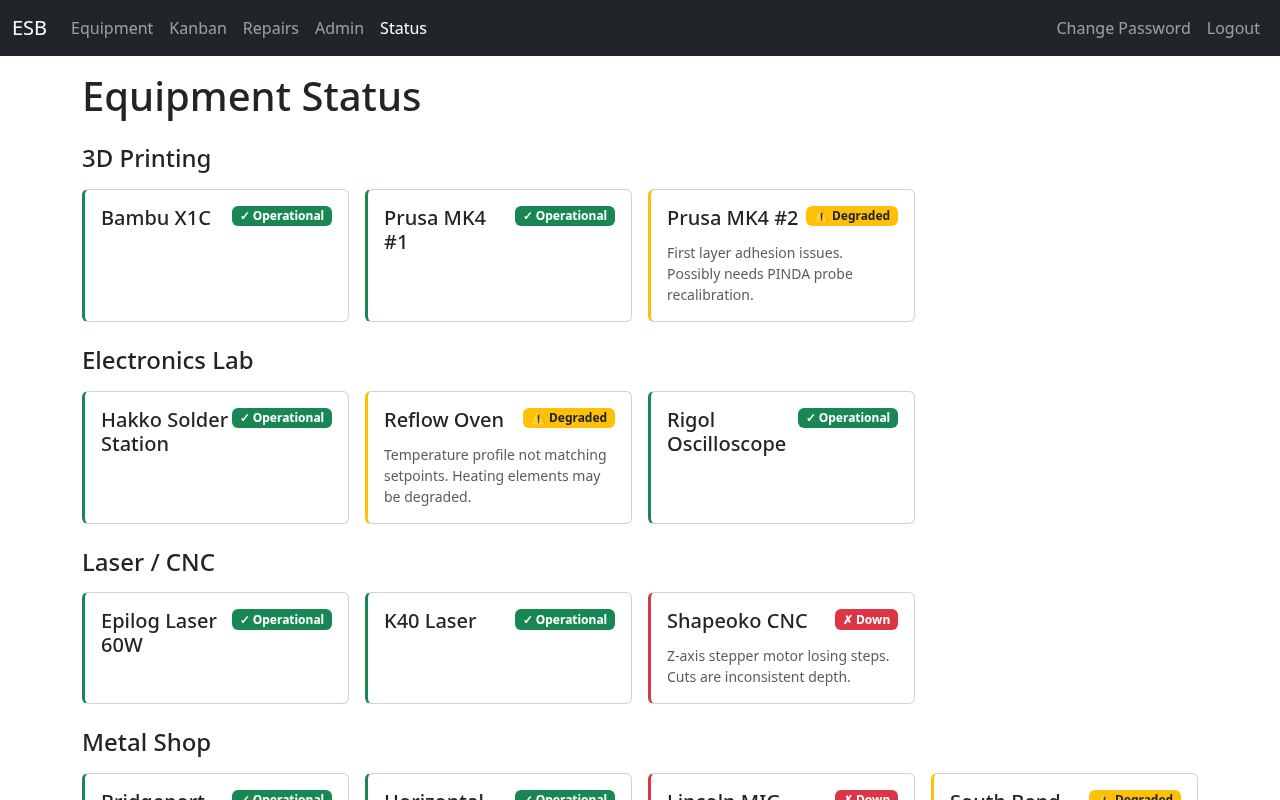
A color-coded status grid organized by area shows every piece of equipment at a glance. Green means operational, yellow means degraded, and red means down.
QR Code Equipment Pages
Every piece of equipment gets a QR code sticker. Scan it with your phone to instantly see the current status, any known issues, equipment documentation, and a form to report new problems.
Kiosk Display
A large-screen display mode designed for wall-mounted monitors or projectors in the space. Auto-refreshes every 60 seconds so status is always current.
Static Status Page
A lightweight status page that can be hosted externally (e.g., on S3) for checking equipment status from anywhere, even outside the local network.
Slack Integration
Report problems, check equipment status, create and update repair records — all from Slack without leaving the conversation.
/esb-report— Report a problem with any piece of equipment/esb-status— Check status of all equipment or a specific item/esb-repair— Create a new repair record/esb-update <id>— Update an existing repair record
Repair Workflow
A 10-status repair lifecycle tracks every repair from initial report through resolution. An append-only timeline on each repair record preserves diagnostic notes, photos, status changes, and assignment history — building institutional knowledge over time.
Role-Based Access
Three user types with appropriate access levels: Members (public, no login required), Technicians (repair management), and Staff (full system administration).
How to Use This Documentation
This documentation is organized by role. Find the guide that matches how you use the Equipment Status Board:
- Members Guide — For anyone using the makerspace. Learn how to check equipment status, scan QR codes, and report problems. No account needed.
- Technicians Guide — For volunteer repair technicians. Learn how to work the repair queue, update repair records, and use Slack commands.
- Staff Guide — For makerspace managers. Learn how to use the Kanban board, manage equipment and users, and configure the system.
- Administrators Guide — For technical volunteers deploying and maintaining the system. Covers Docker deployment, environment configuration, Slack App setup, and ongoing maintenance.
Understanding Status Colors
Throughout the Equipment Status Board, equipment status is indicated by three colors:
| Color | Status | Meaning |
|---|---|---|
| Green | Operational | No known issues. Equipment is working normally. |
| Yellow | Degraded | Equipment works but has a known issue, or severity has not been determined yet. |
| Red | Down | Equipment is not usable. |
Status is always shown with both a color and a text label, so it is accessible regardless of color vision.